Give someone Host App access only
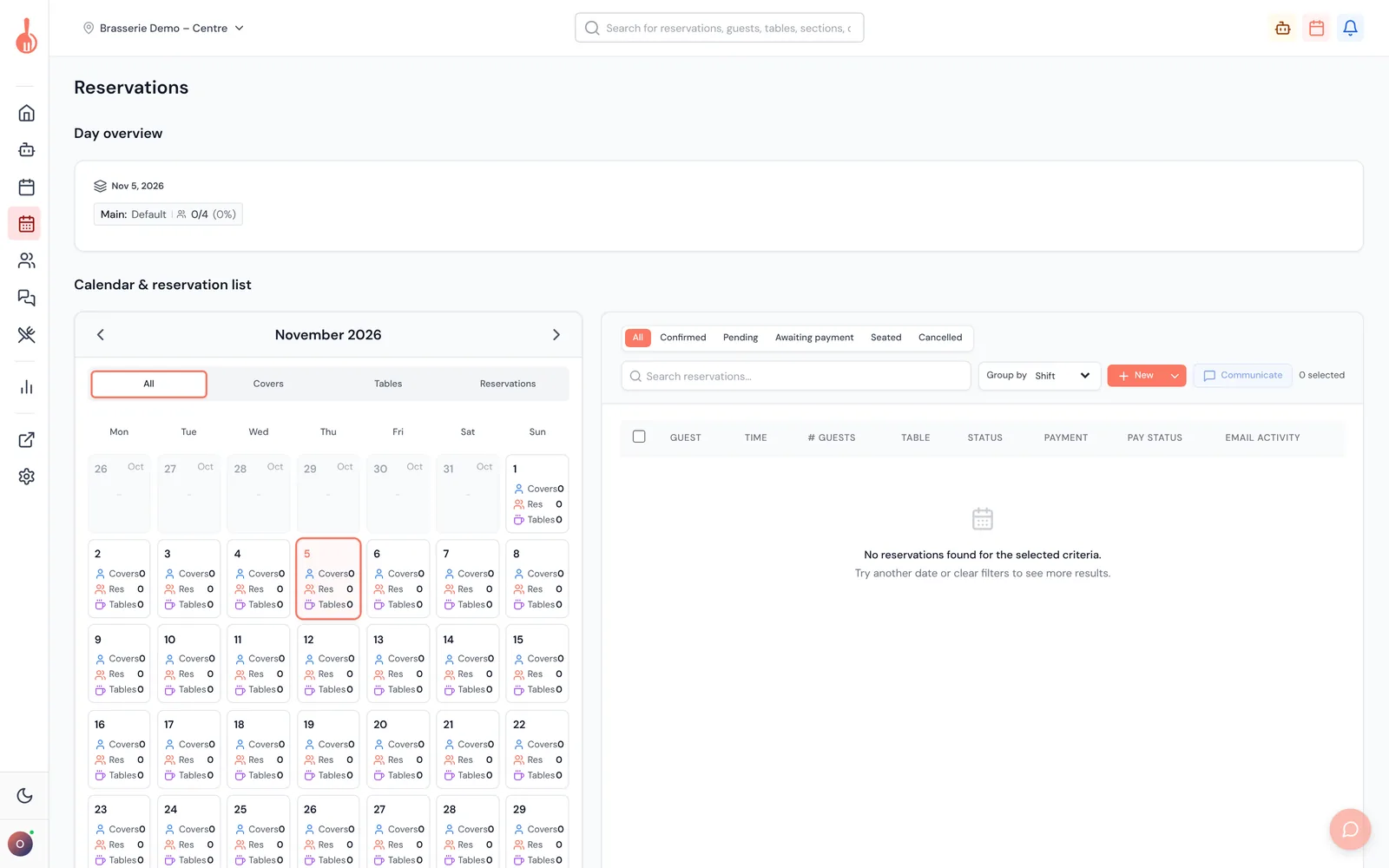
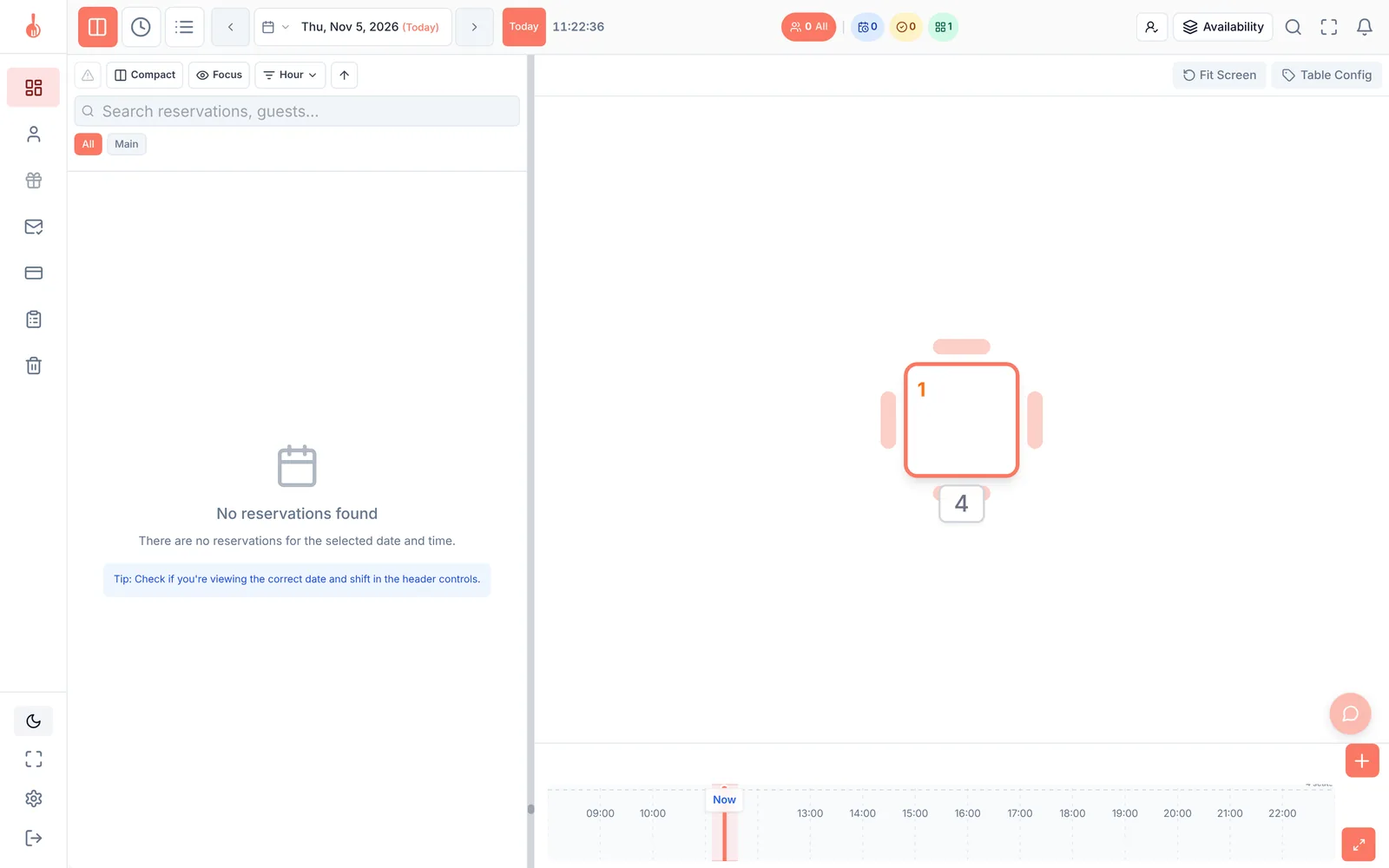
Floor staff often only need the Host App. With the Open the back office permission you decide who can open the Backoffice. People without it can still sign in to the Host App and run service.
Where to find it
Backoffice › Settings › Account Management › Roles & Permissions › Back Office group › Open the back office (the Host App is not affected).
What it does
- Every built-in role (Owner, Admin, Manager, Operator, Viewer) has Open the back office. Nothing changes for anyone on a built-in role.
- To keep someone out of the Backoffice, give them a custom role with Open the back office unticked.
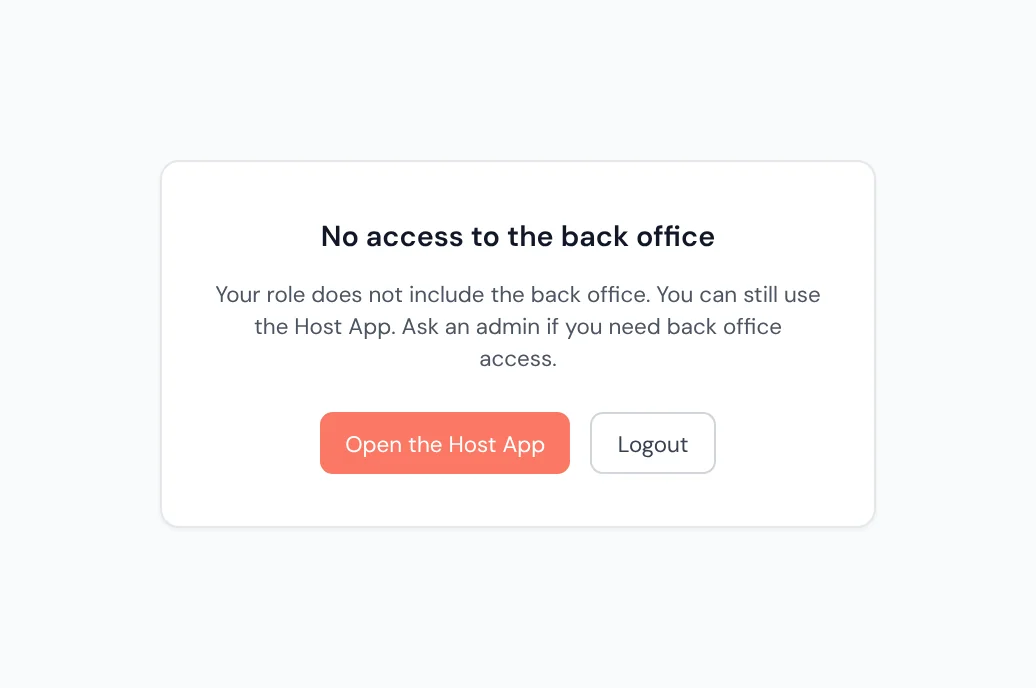
- When they open the Backoffice, every page shows No access to the back office instead: "Your role does not include the back office. You can still use the Host App. Ask an admin if you need back office access." Typing a Backoffice address directly shows the same screen.
- Open the Host App opens the Host App in a new tab, already signed in.
How to set it up
- Go to Roles & Permissions and click Copy next to the built-in role that comes closest (often Operator or Manager), or click New Role.
- Give the role a clear name, for example "Floor staff (Host App only)".
- Untick Open the back office in the Back Office group.
- Check the other permissions and click Create Role.
- Give the role to the people concerned: when you invite them, or with Manage Access in HQ › User Management. See "Give someone a role".
Good to know
- Owners and Admins always get in. You can't lock out the people who would have to fix it.
- 10Seat support sessions always get in.
- Different role per location. If someone has a role at each of their locations, they can open the Backoffice when the role at any one of those locations allows it. Their company role doesn't count when every location has its own role. Example: Sam is a Manager company-wide but "Floor staff" at both locations, so Sam sees the no-access screen.
- New custom roles start with the box ticked, so nobody is locked out by accident.
- This permission is about the Backoffice screens only. What someone can see and change in the Host App still depends on their other permissions.
- The change applies the next time the person signs in or reloads the page.
Troubleshooting
A colleague sees "No access to the back office" but should have access Their role (or their role at every one of their locations) has Open the back office unticked. Tick it on the role, or give them another role, then ask them to reload.
A colleague on a Host App-only role can still open the Backoffice They may have a location role that allows it at one of their locations, or they haven't reloaded since the change. Check their roles with Manage Access in HQ › User Management.
"Open the Host App" doesn't open anything Your browser may have blocked the new tab. Allow pop-ups for 10Seat, or open the Host App yourself and sign in with the same account.