Give someone a role
You give someone a role when you invite them, and you can change it later. Built-in roles and your custom roles appear in every role list, custom roles under the heading Custom Roles.
Where to find it
- New people: Backoffice › Settings › Account Management › Users › Invite User, or HQ › User Management › Invite User.
- Existing people: HQ › User Management › Manage Access on the person's row.
What it does
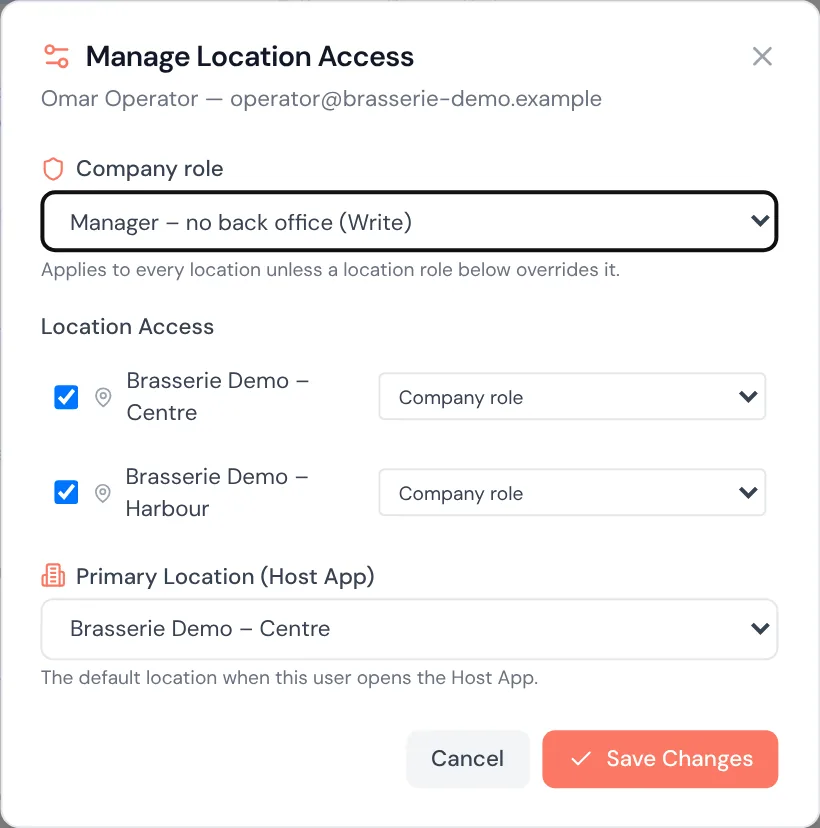
- Company role: applies at every location, unless a location role overrides it.
- Location role: on multi-location accounts, a different role at one location. Leave it on Company role to use the company role there.
- In the role dropdowns, custom roles show their access tier, for example "Manager – no back office (Write)".
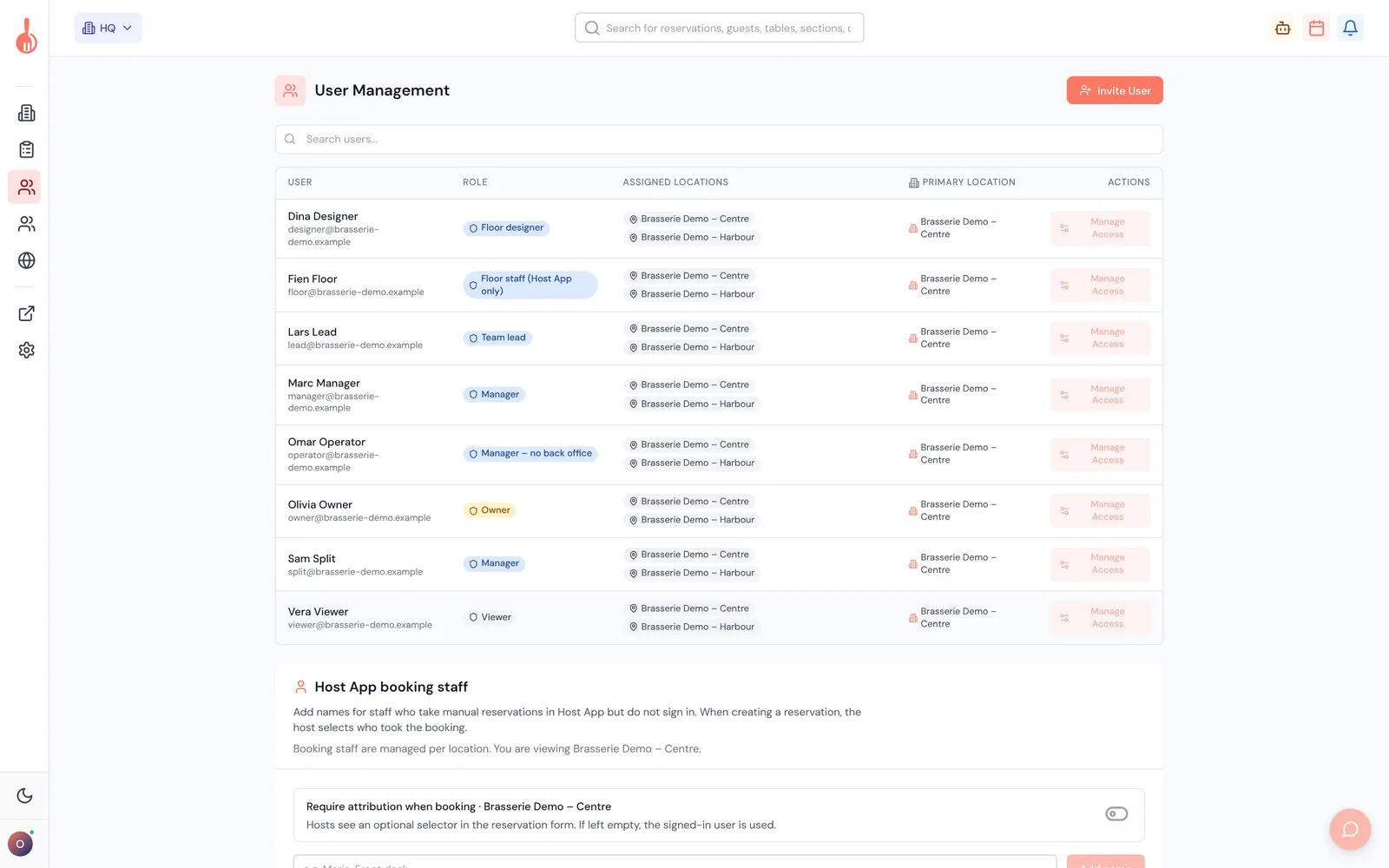
- User lists show each person's role by name, also for custom roles.
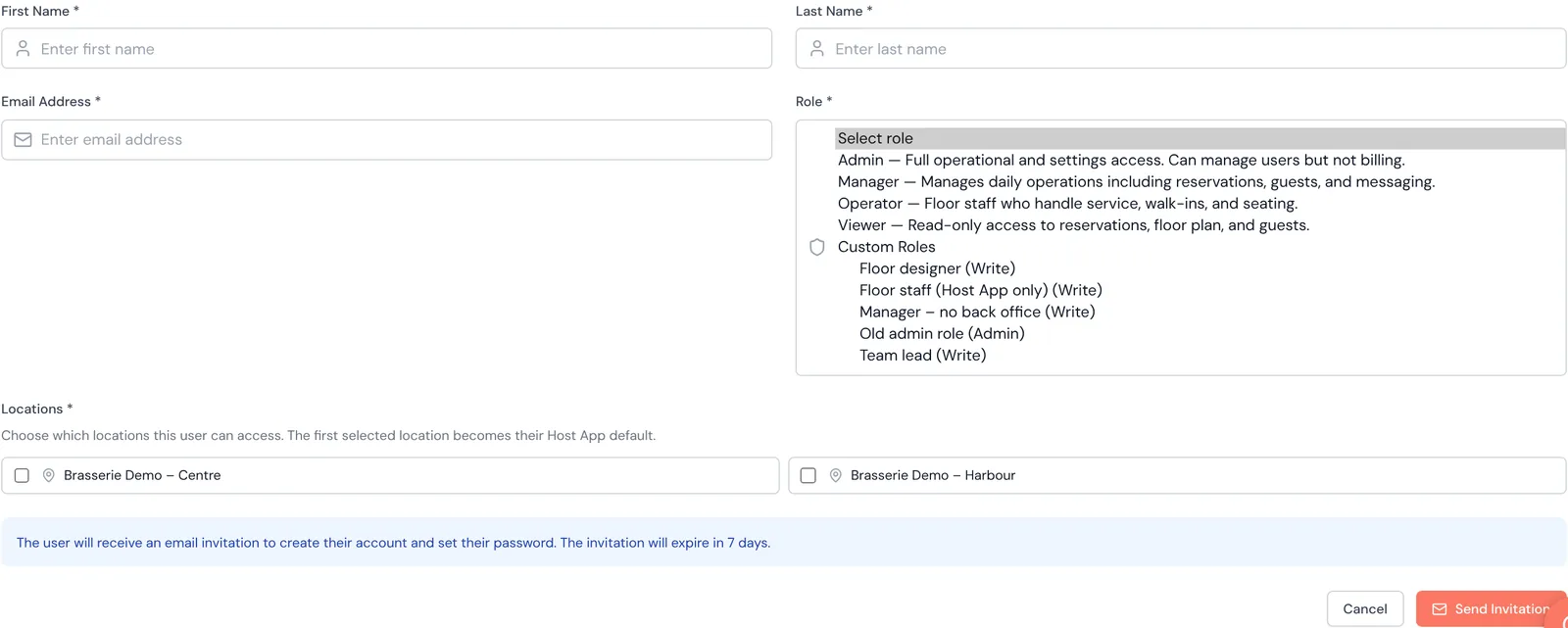
How to give a role to someone new
- Click Invite User.
- Fill in their name and email address.
- Choose a Role. Custom roles are listed under Custom Roles.
- Tick their Locations and click Send Invitation.
See "Invite and manage team members" for the full steps.
How to change someone's role
- Go to HQ › User Management and click Manage Access on the person's row.
- Choose their Company role. It applies to every location unless a location role below overrides it.
- Optionally, under Location Access, choose a different role for a location.
- Click Save Changes. Their row shows the new role.
Good to know
- Only Owners and Admins can change someone's company role. Others with Manage users and invitations can change location roles and locations, within limits. See "Who can change roles".
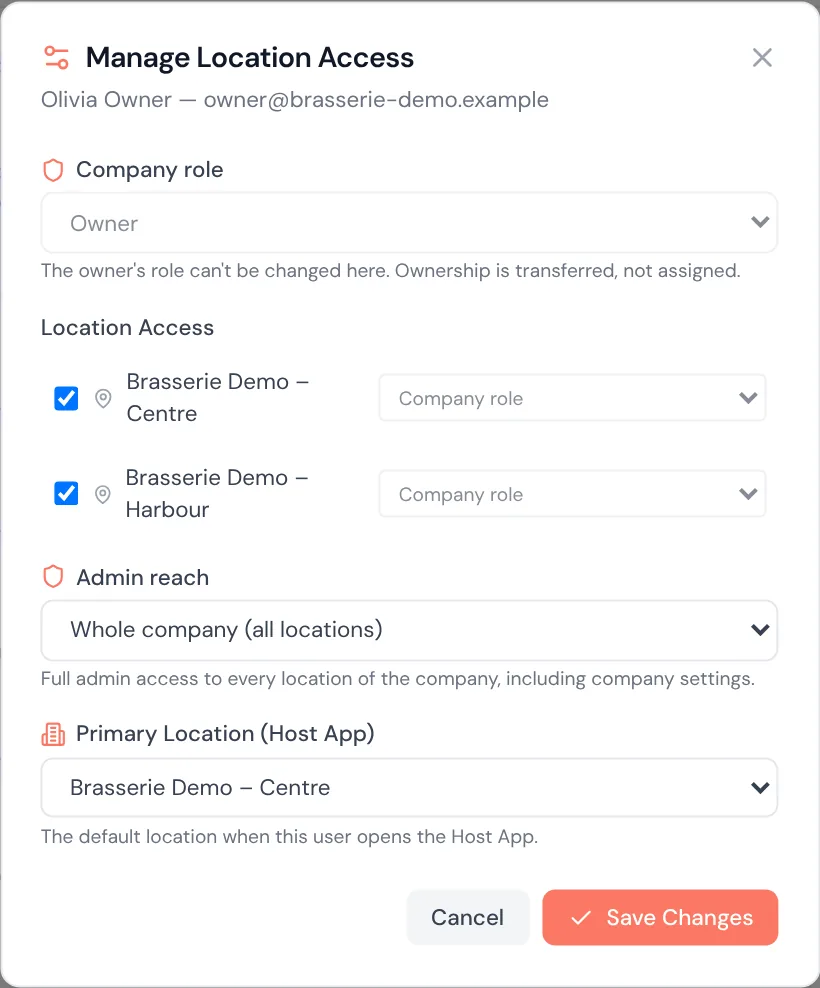
- The Owner's role is locked. Ownership is transferred, not assigned. Contact 10Seat support to transfer ownership.
- Nobody can change their own location role. Only Owners and Admins can change their own company role.
- HQ › User Management shows the company role. Settings › Users shows the role at the location you are viewing. Someone with a location role can therefore show a different role on each page. Open Manage Access to see every location role.
- The new role applies the next time the person signs in or reloads the page.
Troubleshooting
The Company role dropdown is greyed out You are not an Owner or Admin, or the person is the Owner.
A location role dropdown is greyed out It is your own row ("You can't change your own location role."), or the person is an admin and you are not ("Only owners and admins can change an admin's location access.").
"Only owners and admins can grant an admin-level role or change an admin's role" You tried to make someone Owner or Admin, or to change an admin's role. Ask an Owner or Admin.
My custom role isn't in the list Check that it was saved on Roles & Permissions, then reload the page.
The person still has their old access Ask them to sign out and sign in again, or reload the page.