Connect Leat loyalty
Leat (formerly Piggy) is your loyalty programme. 10Seat does not replace it. 10Seat switches Leat loyalty on for a location. The integration is in beta. You then paste a Personal Access Token, choose which Leat location this restaurant is, and choose whether visits are copied to Leat so Leat can award points.
Where to find it
Backoffice › Settings › Integrations › Leat loyalty.
The Integrations card on Settings still reads "POS integration, Reserve with Google, and Yeat — see what is connected and configure what is live." Leat is on the page that card opens.
What it does
The Leat loyalty card is one of the integration cards for the location selected at the top of the backoffice.
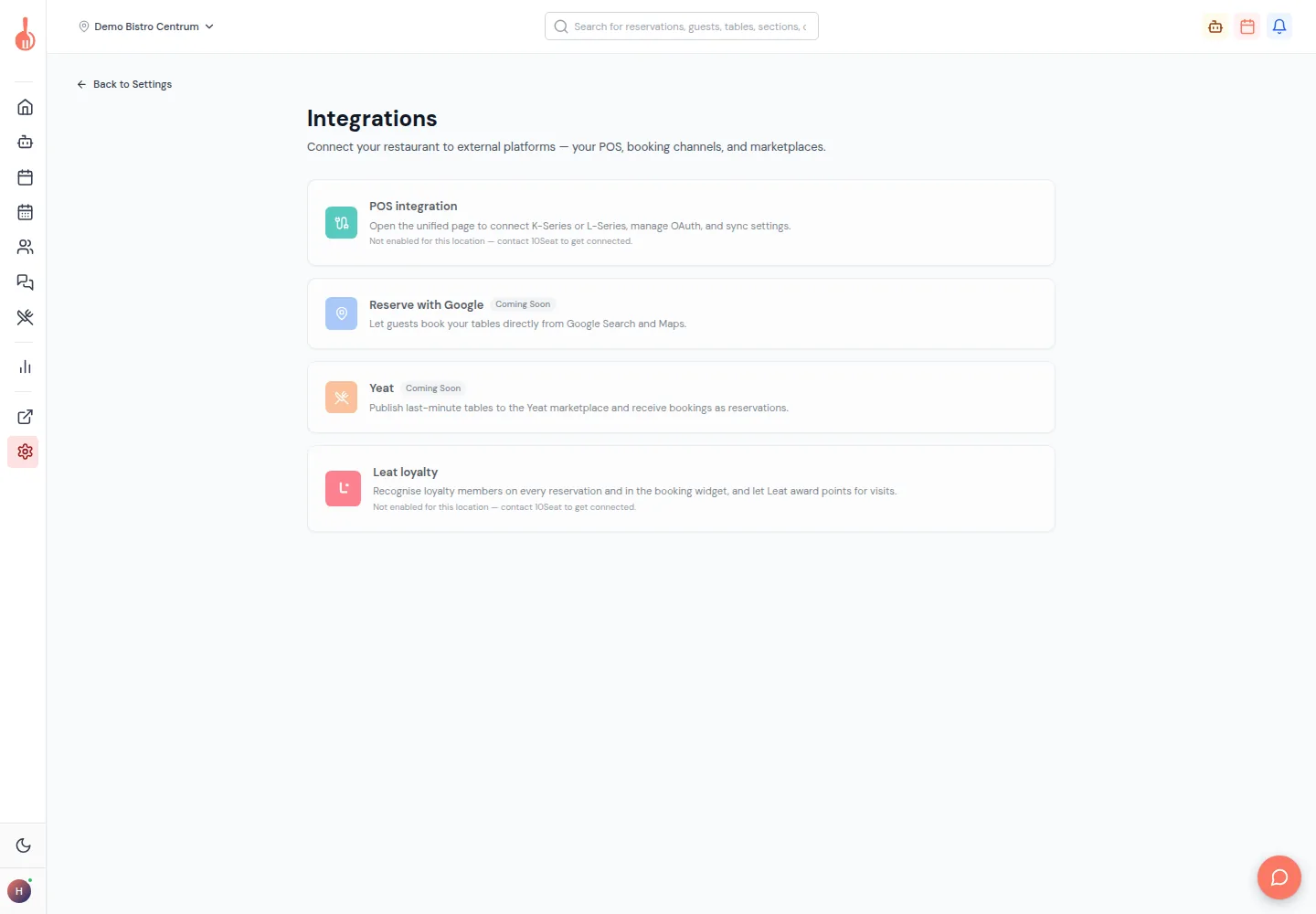
Until 10Seat has switched it on, the card is grey and says "Not enabled for this location — contact 10Seat to get connected." It cannot be opened.
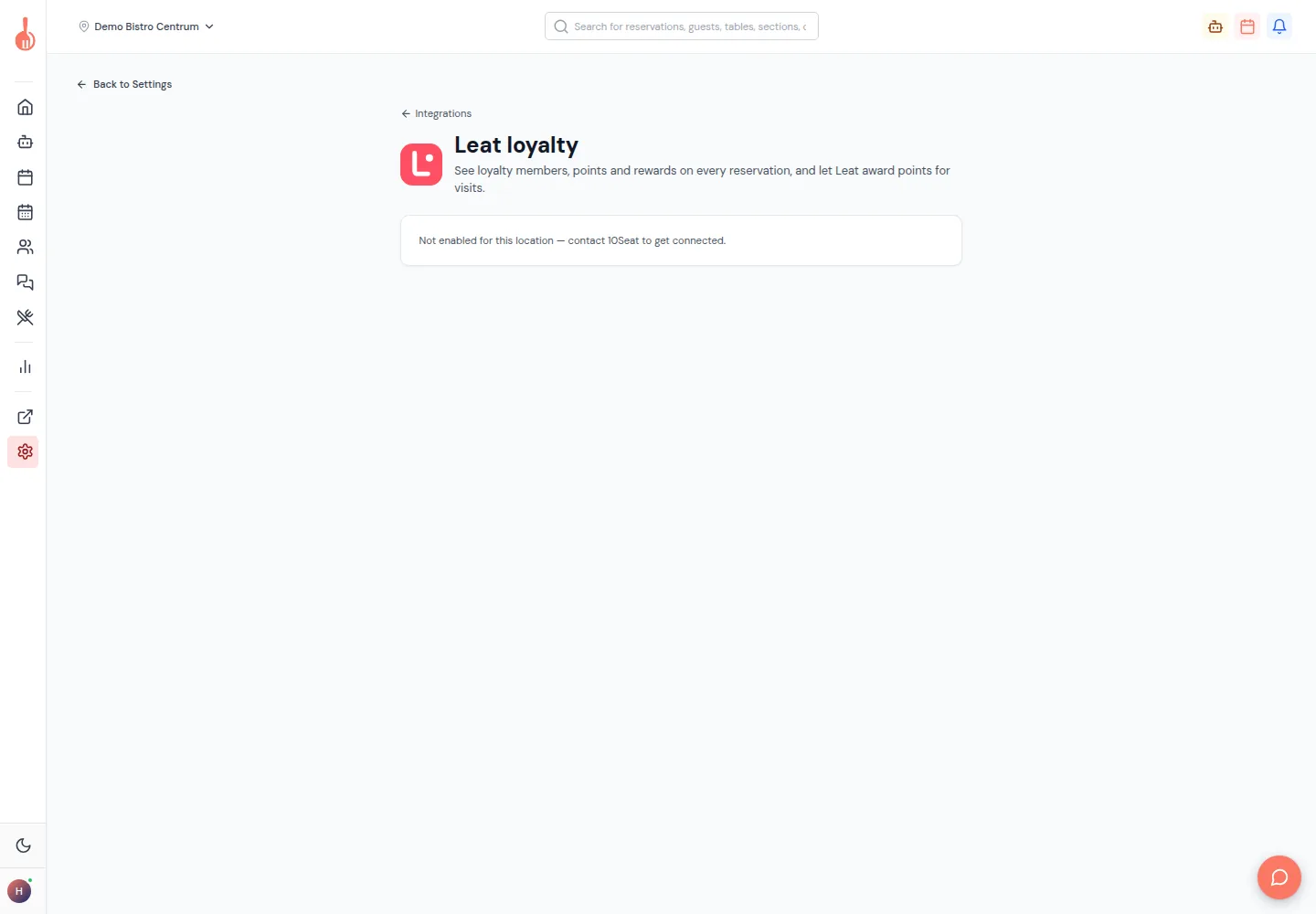
Opening the settings page directly shows the same sentence.
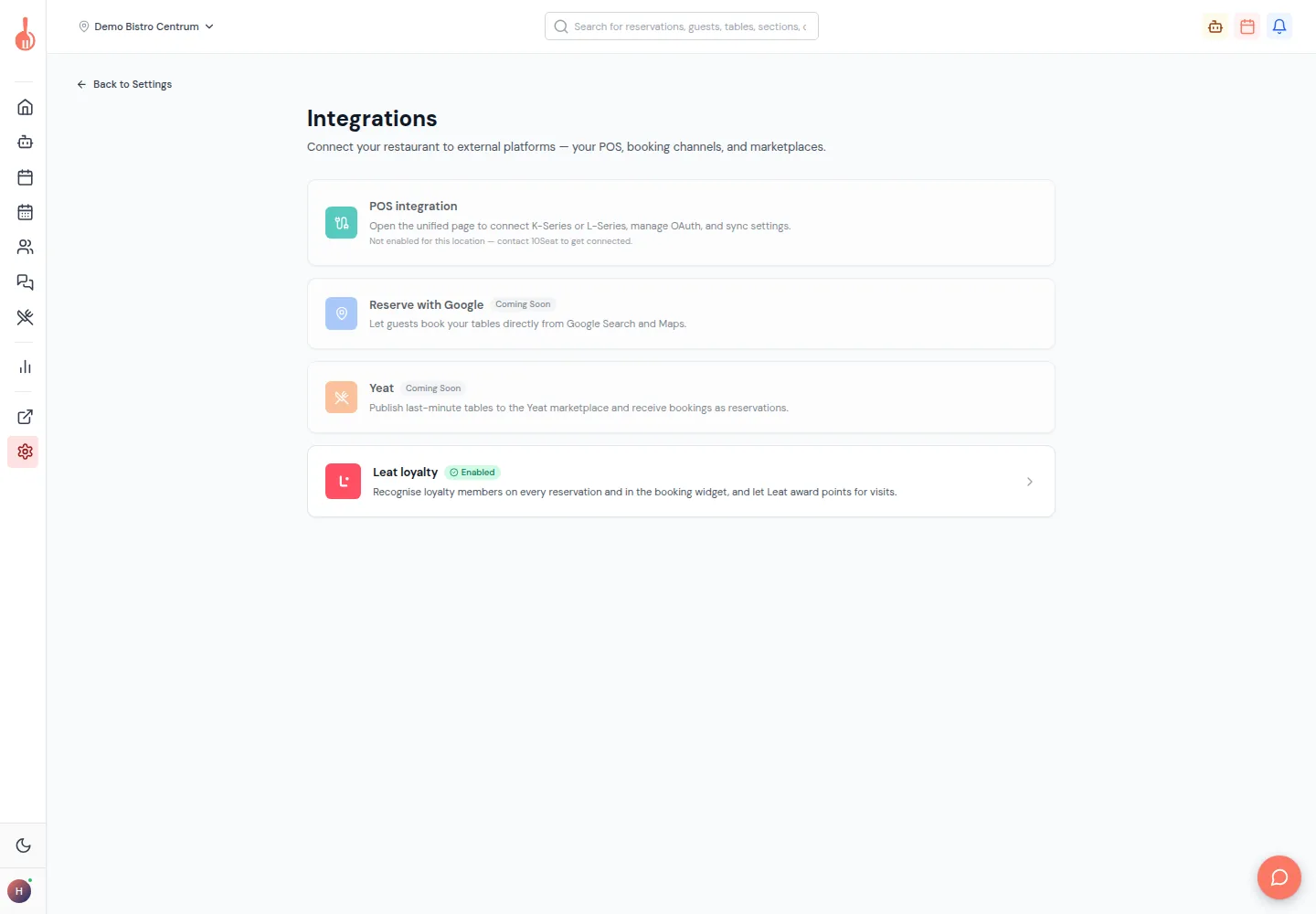
Once 10Seat has switched it on, the card shows an Enabled badge. Click it to open Leat loyalty. Enabled means 10Seat has allowed the connection. It does not mean a token has been pasted yet.
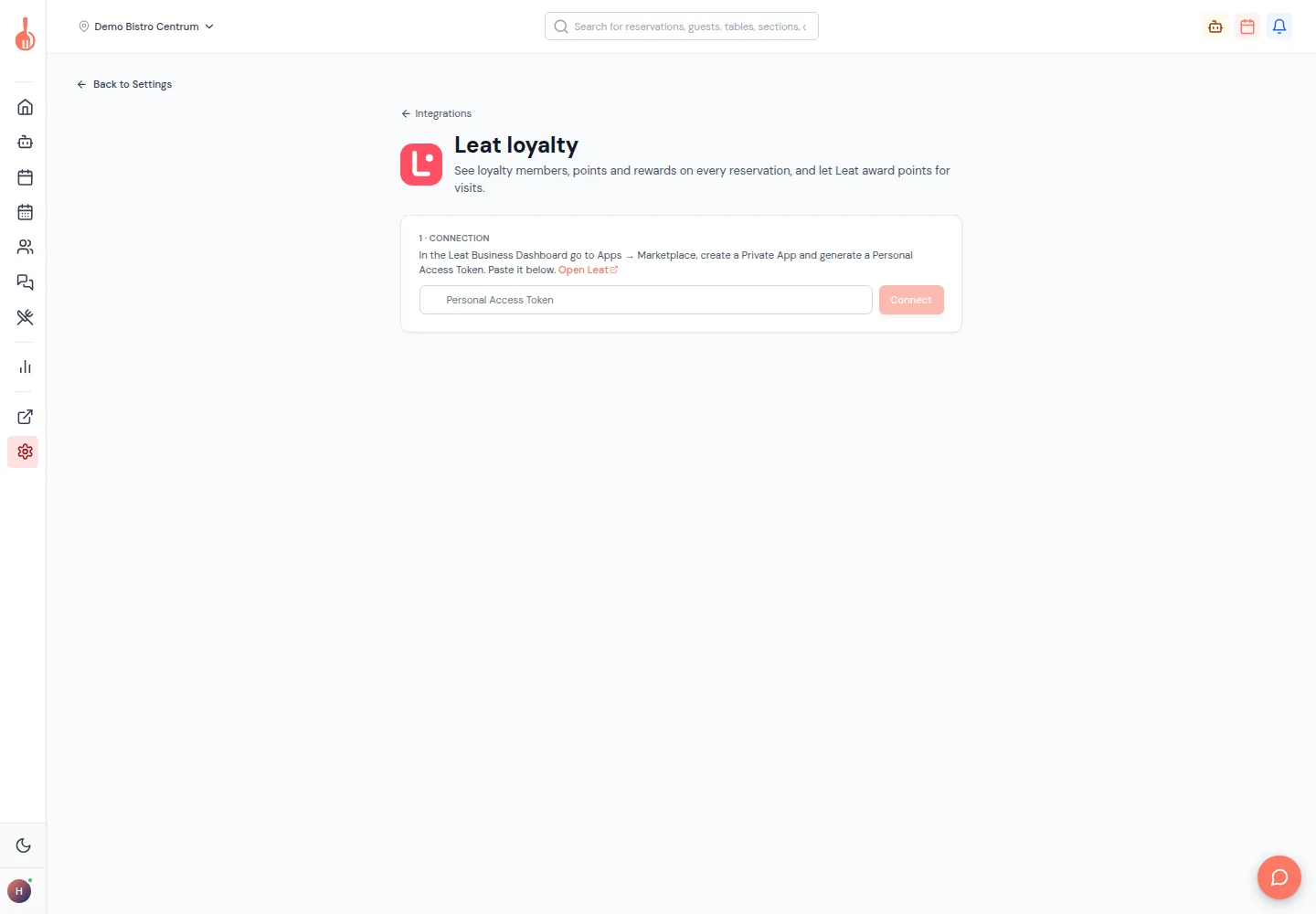
The page subtitle is "See loyalty members, points and rewards on every reservation, and let Leat award points for visits."
That card text mentions the booking widget. Guests do not see a Leat card there yet. Member recognition in the booking widget is coming soon.
How to connect
- Ask 10Seat to switch on Leat loyalty for this location. You cannot switch it on yourself.
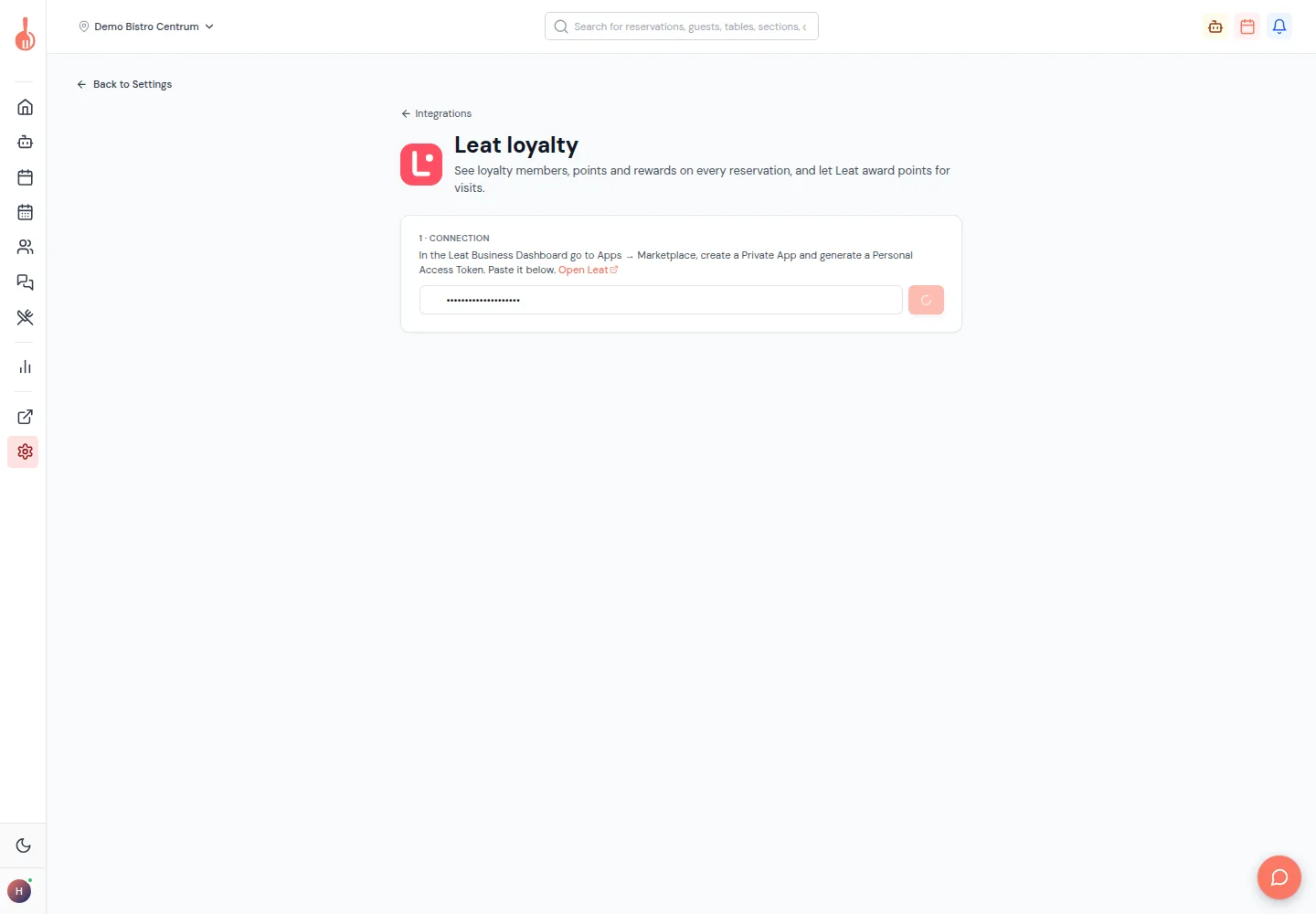
- In the Leat Business Dashboard go to Apps → Marketplace, create a Private App and generate a Personal Access Token. The page links there as Open Leat.
- In 10Seat, open Leat loyalty with the right location selected.
- Under 1 · Connection, paste the token in Personal Access Token. Connect stays disabled until the token is at least 8 characters.
- Click Connect. While 10Seat checks the token, the button shows a spinner.
- When it works, the page reads "Connected to {programme name}" and "Token ending in …{last four characters} · shared by all your locations", with a Disconnect button.
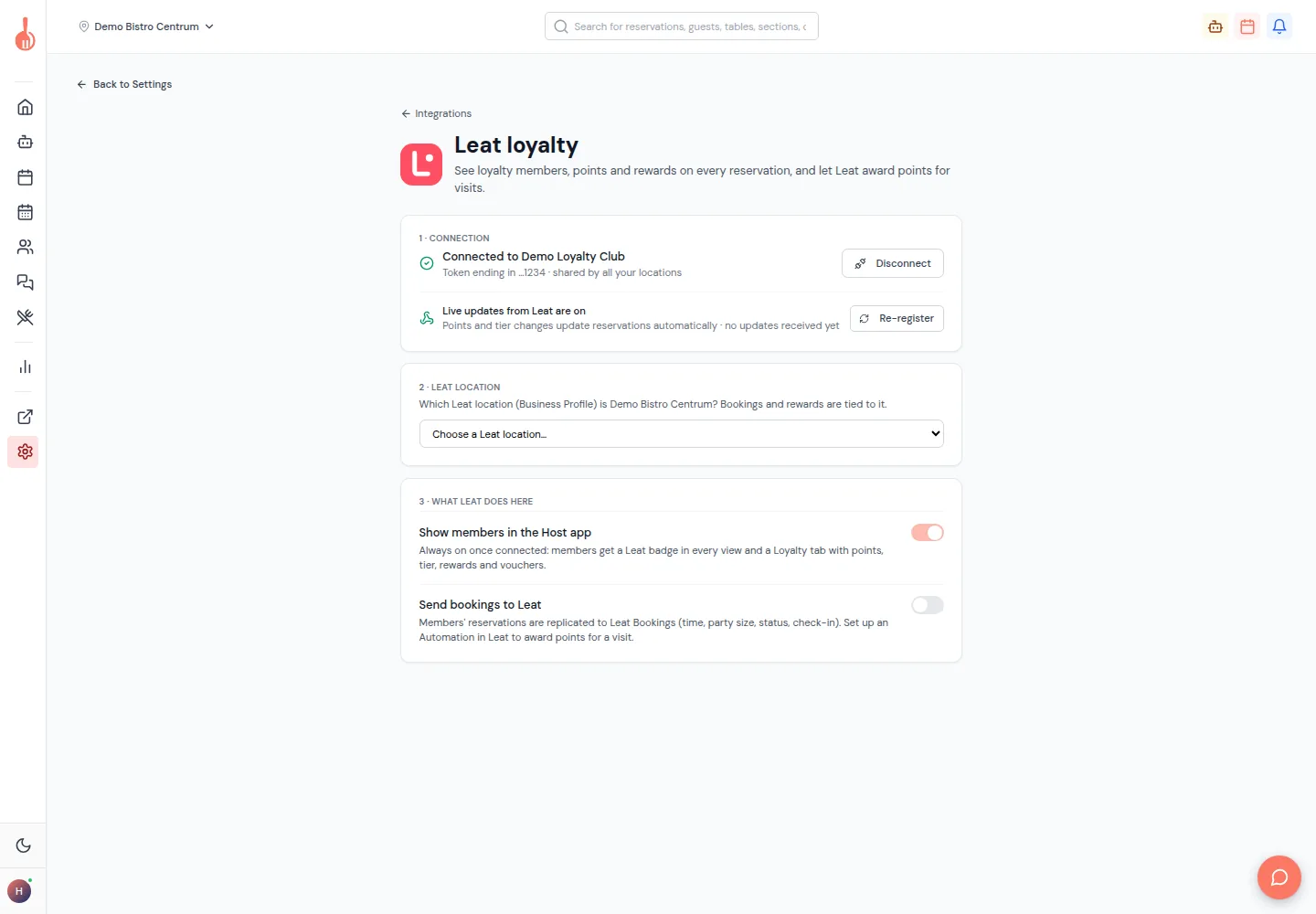
One token covers the whole company. Connecting again from another location replaces that shared token.
How to choose the Leat location
After the token is accepted, section 2 · Leat location appears. The help text is "Which Leat location (Business Profile) is {your location name}? Bookings and rewards are tied to it."
- Open the list. The empty choice is Choose a Leat location….
- Pick the Leat location for this 10Seat location. Each option is the location's name, and its type in brackets when Leat sends one (for example a physical restaurant).
- The choice is saved as soon as you pick it. Each 10Seat location has its own choice. The token stays shared.
How to choose what Leat does here
Section 3 · What Leat does here has two switches.
- Show members in the Host app is on and locked. The help text is "Always on once connected: members get a Leat badge in every view and a Loyalty tab with points, tier, rewards and vouchers." You cannot turn it off while you are connected.
- Send bookings to Leat starts off. It stays disabled until a Leat location is chosen. The help text is "Members' reservations are replicated to Leat Bookings (time, party size, status, check-in). Set up an Automation in Leat to award points for a visit." Turn it on to copy a member's visit to Leat.
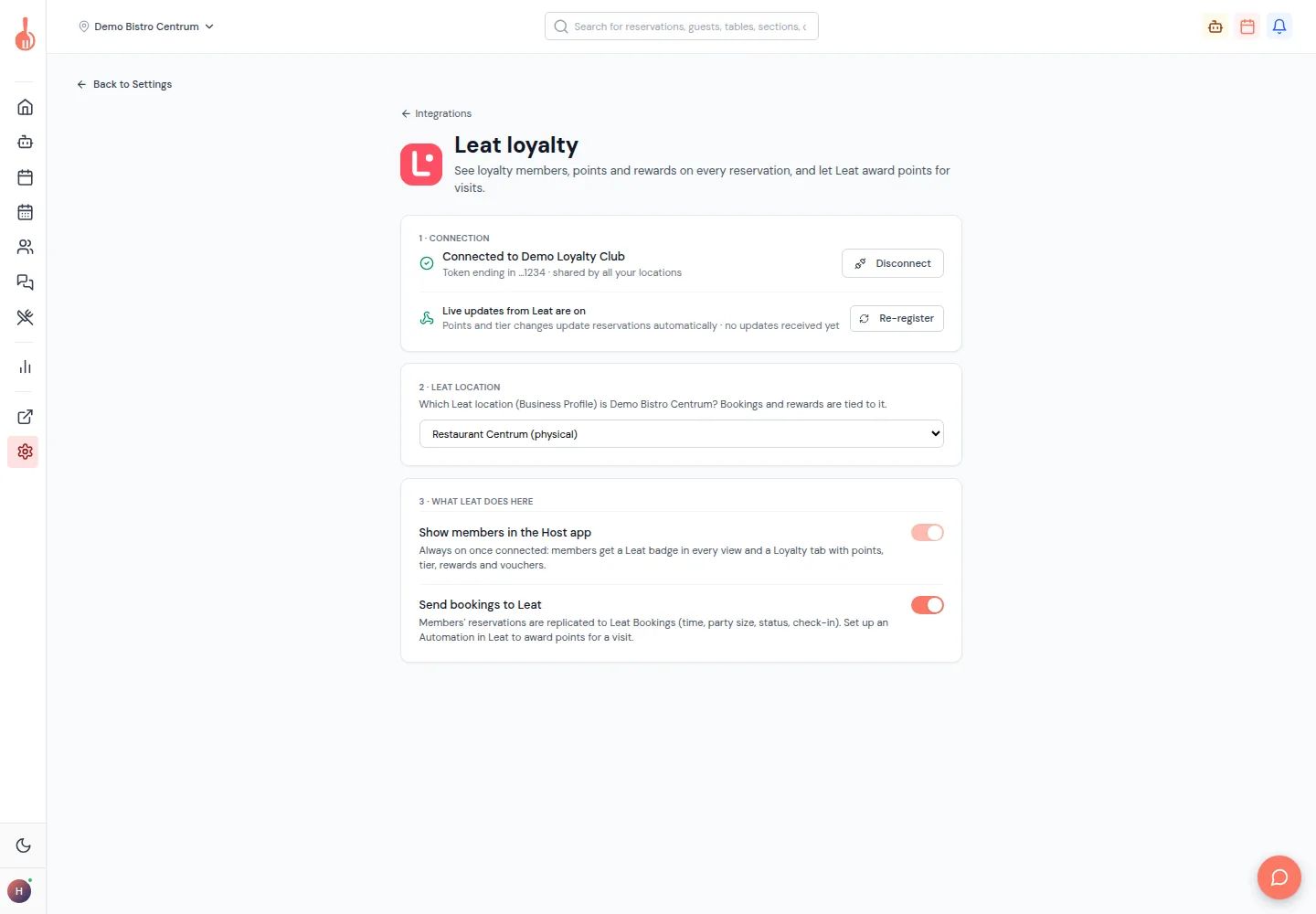
10Seat never calculates points, and nothing in 10Seat spends points. Points are awarded only by an Automation you set up in Leat. See "How Leat loyalty matches guests and awards points".
How live updates work
Under the connection, 10Seat shows whether Leat can push changes back.
- Live updates from Leat are on. The line under it is "Points and tier changes update reservations automatically". If nothing has arrived yet it adds "no updates received yet". After the first update it adds "last update {date and time}". Re-register sets the link up again.
- Live updates from Leat are not set up. An amber warning, then either an error from Leat or "Without them, balances refresh when a reservation changes or every 6 hours." Set up tries again.
You do not create this link in the Leat dashboard. 10Seat registers it when you connect. Connecting still succeeds if that registration fails. Use Set up afterwards. Disconnect removes the link.
Good to know
- Select the location in the backoffice location switcher first. The card and the Leat location choice are per location. The token is per company.
- Disconnect removes the token for every location in the company, not only the one you have open. Each location keeps its Leat location choice, so you only paste the token again.
- A guest's points, tier and rewards in the Host app are read from Leat. Turning the switches off does not delete anything in Leat.
- The booking widget does not show a member card, a "Welcome back" message, or a guest's points. That is coming soon.
Troubleshooting
The Leat loyalty card is grey 10Seat has not switched Leat on for this location. Contact 10Seat support. The settings page shows the same sentence: "Not enabled for this location — contact 10Seat to get connected."
Connect does nothing The token is shorter than 8 characters, so Connect stays disabled. Paste the full Personal Access Token from the Leat Private App.
A red message says "Leat rejected the access token" Leat did not accept the token. Create a new Personal Access Token in Apps → Marketplace → Private App and paste that. A token from another Leat account will not show this restaurant's members.
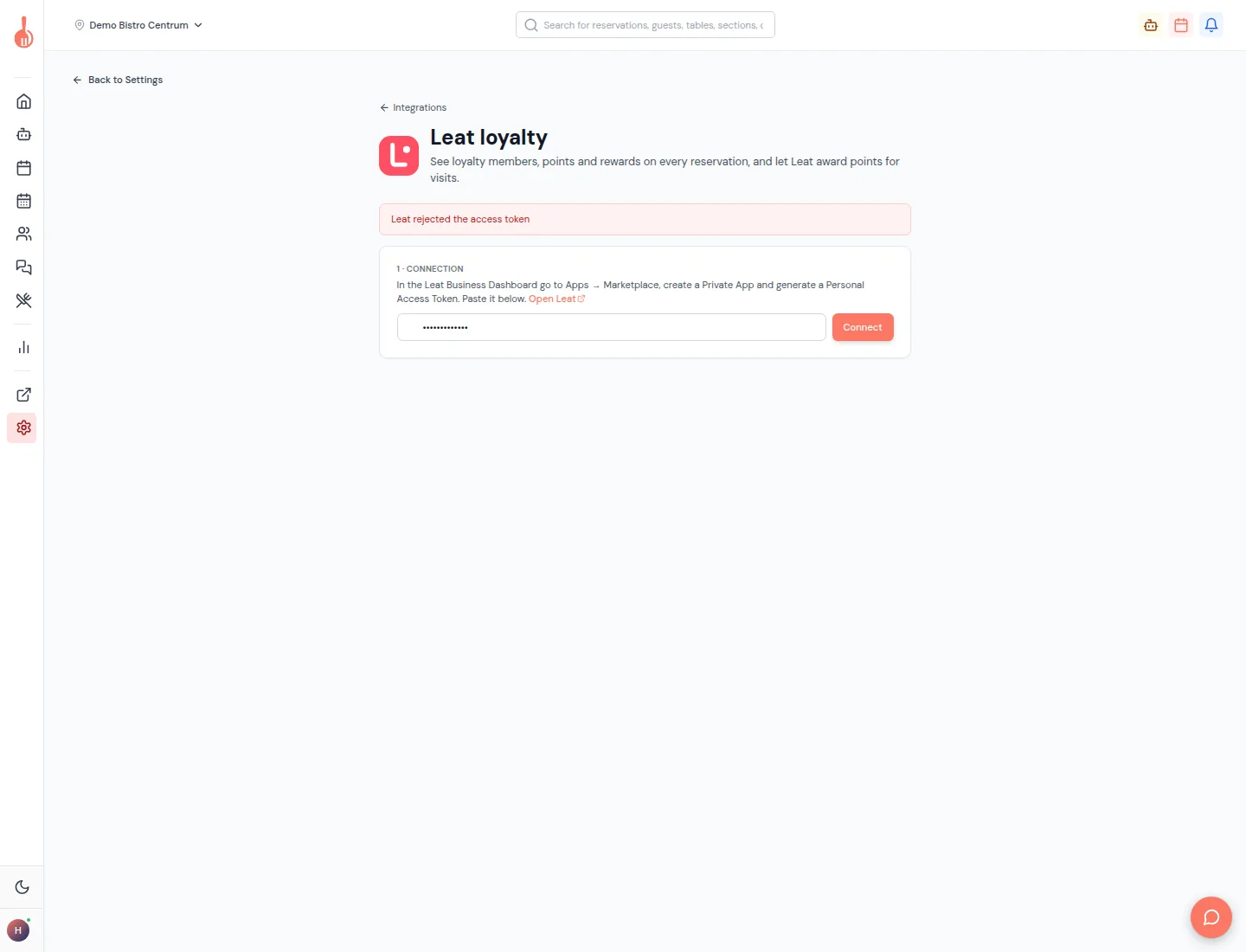
A red message says "Failed to connect Leat", "Failed to load Leat settings" or "Failed to load Leat business profiles" 10Seat could not finish the request. Check that you are signed in, then try again. If Failed to load Leat business profiles appears after a successful connect, Leat accepted the token but the list of locations did not load. Reload the page. If it keeps failing, contact 10Seat support.
Send bookings to Leat is greyed out Choose a Leat location in section 2 · Leat location first.
I connected on one location and another location lost Leat The token is shared. Disconnect, or connecting a new token, applies to the whole company. Open each location and check 1 · Connection and 2 · Leat location.